
ILLUSTRATED INSTALLATION
Your illustrated installation guide
Follow the actual English interface, with a clear explanation beside each step.
Illustrative UI capture with synthetic data. Use your own details; this is not proof of installation, activation or trading.
Before the first screen
Install on the Windows computer that will run MetaTrader 5. Arrange the official package and access details with LSCT.
Prepare your details
- Prepare Windows 64-bit, a stable connection, the broker’s MetaTrader 5 desktop terminal and an eligible hedging account. A phone can read this guide; it does not replace the Windows execution computer.
- Ask LSCT for the installer, company setup address or LSCT-Provider.json, your username, temporary password and enrollment/activation instructions. The public website address is not the licensing-service address.
- Keep your Telegram API ID, API Hash, international phone number and permitted numeric source IDs ready. Prepare the exact broker server, account number and terminal64.exe path.
Windows installer and shortcut
- Open LSCT_Nexus_Setup_3_14.exe from the LSCT package. In Company setup address, use the address LSCT supplied, or choose Load company file.
- Keep the default Installation locations unless support advises otherwise. Leave Create a desktop shortcut and Add to the Start menu selected if wanted.
- Select the installation consent checkbox, then Install LSCT Nexus. After a successful installation, choose Open LSCT Nexus or use the LSCT Nexus shortcut.
- In the desktop window, select Open workspace. Your browser opens the local setup page. The runtime is included; no separate Python installation is needed.
The sequence above is verified from installer source. The eight screenshots below show browser forms only. If Windows blocks an unsigned package, stop and contact LSCT; do not disable security controls.
1. Sign in with owner-issued access
This account is for LSCT Nexus, not your broker or Telegram password.
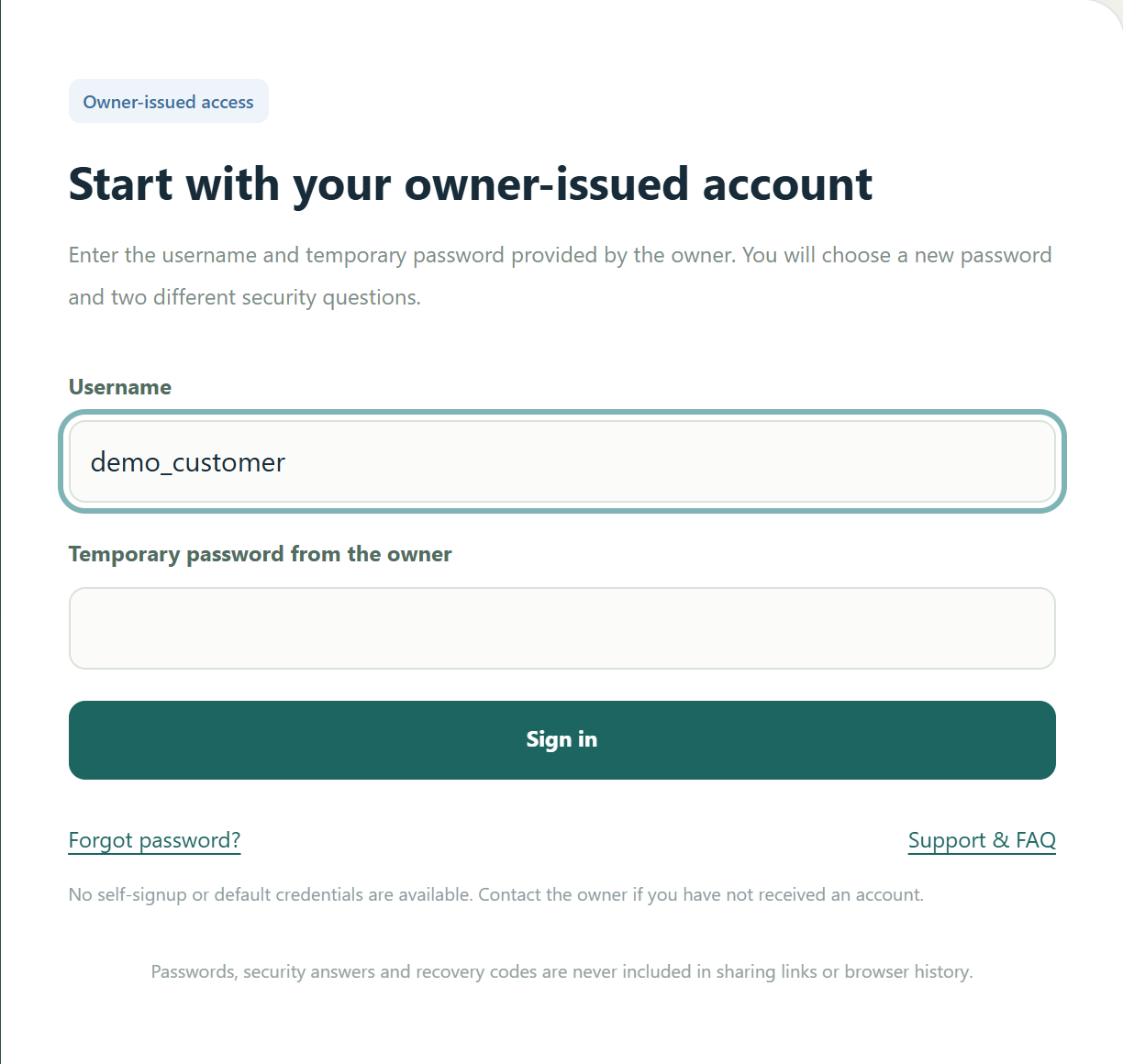
- Enter the supplied Username and Temporary password from the owner, then select Sign in. There is no public self-signup or default password.
- If you have no credentials or sign-in is refused, use Support & FAQ and contact LSCT. Never place account secrets in a website support draft.
2. Make the account private
Replace the temporary password before continuing to setup.
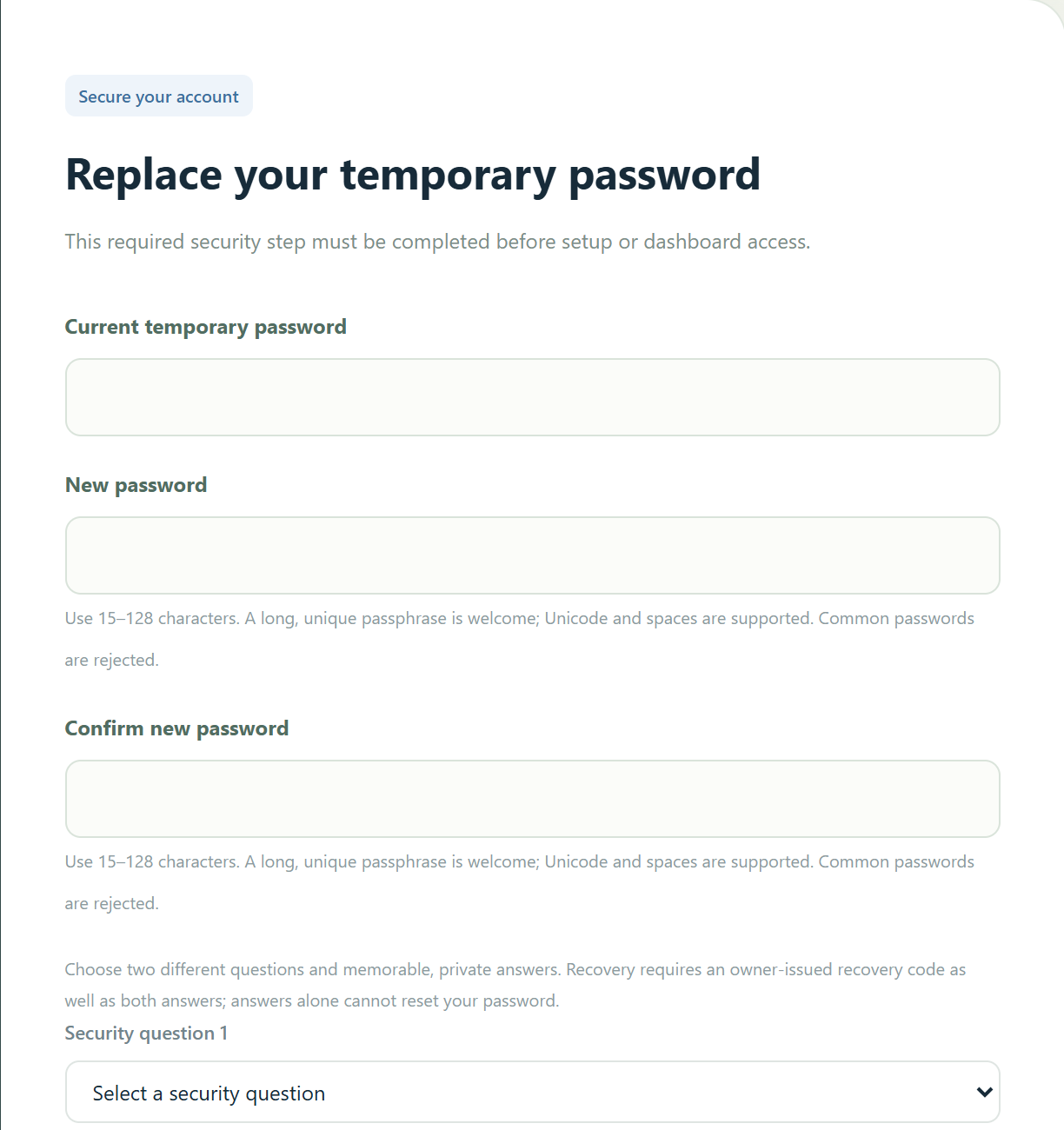
- Enter the current temporary password, a new unique 15-128 character passphrase, and its confirmation. Spaces and Unicode are supported; common passwords are rejected.
- Scroll down and choose two different security questions with private answers. Select Save new password and security questions, then sign in again with the new password.
- Forgotten-password recovery also requires an owner-issued recovery code. Security answers alone cannot reset the account.
3. Complete your basic profile
Your profile identifies your account, support requests and consent receipt.
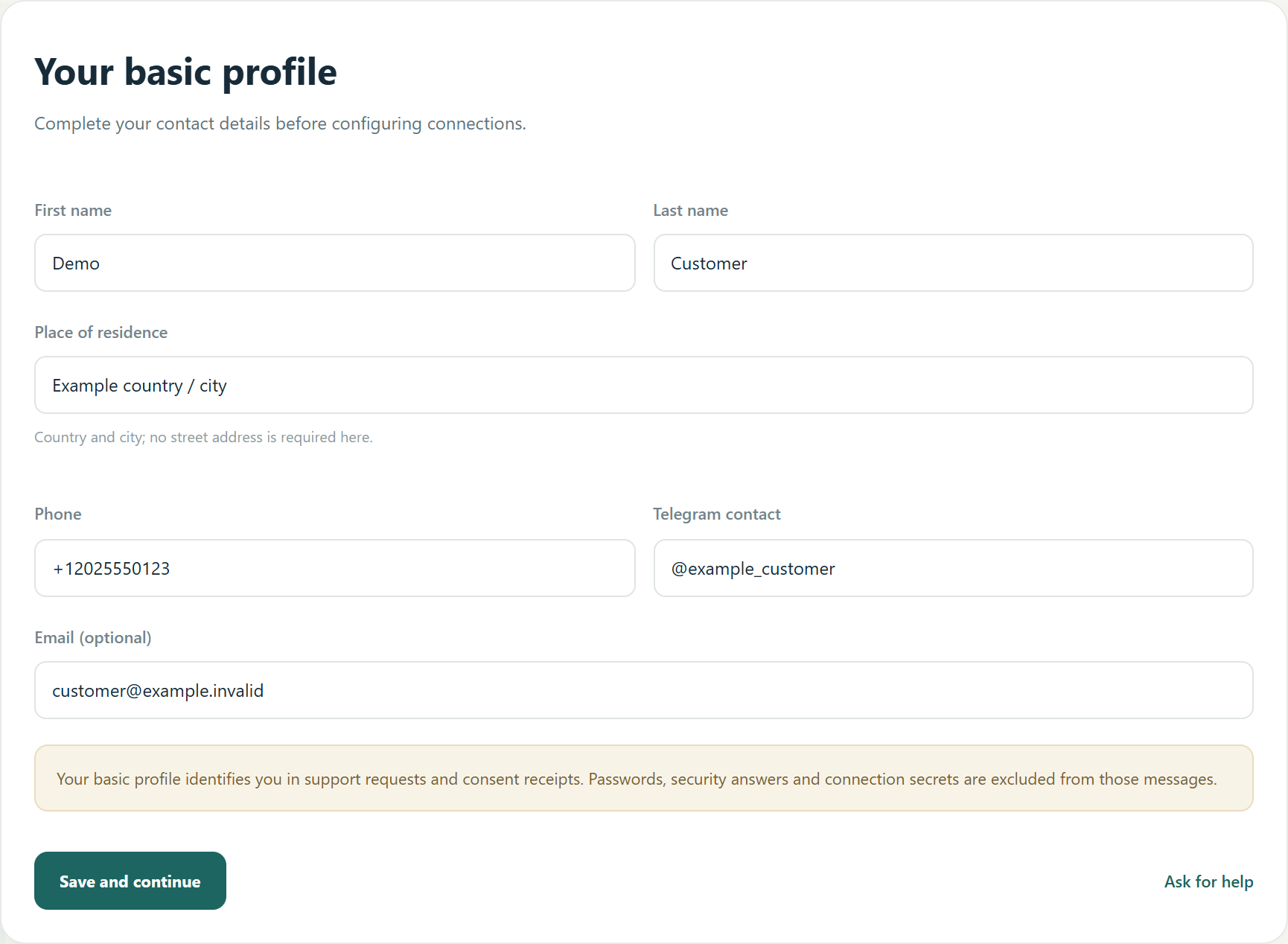
- Fill First name, Last name, Place of residence, Phone and Telegram contact. Residence needs country and city, not a street address. Email is optional.
- Review spelling and the international phone format. Select Save and continue. These example values must be replaced with your own.
4. Save the Telegram profile
One Telegram sign-in can read the permitted channels, groups and personal chats within your plan.
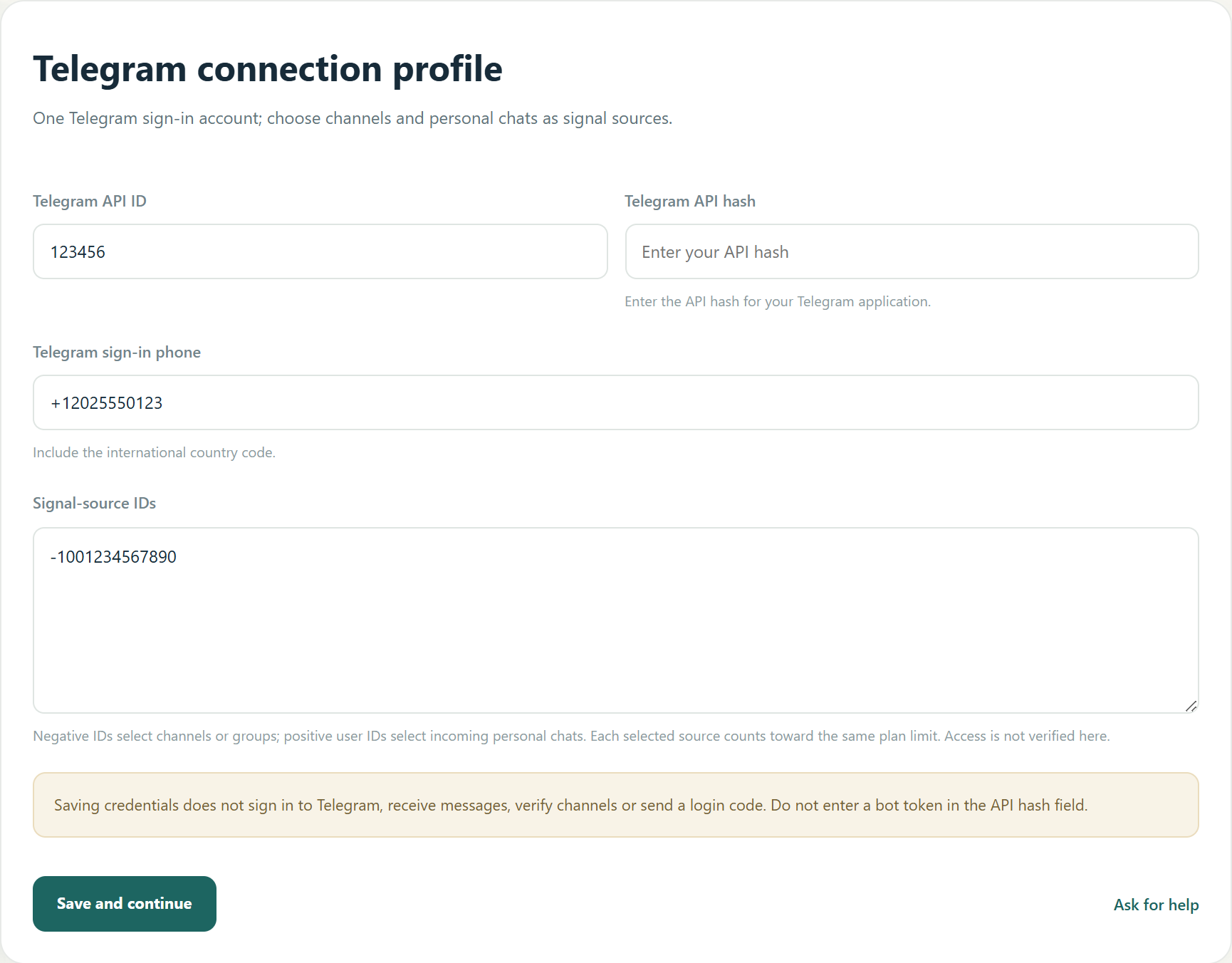
- Enter Telegram API ID, Telegram API hash and Telegram sign-in phone. Obtain your own API values from Telegram’s official API portal. API Hash is not a bot token.
- Enter full numeric Signal-source IDs: negative for channels/groups, positive for incoming personal chats. Ask support to resolve IDs you do not know. Select Save and continue.
- Saving this form does not verify source access or send a Telegram login code. Verification happens later when you explicitly connect.
5. Identify the exact MT5 account
The account number and broker server together identify the account that will be licensed.
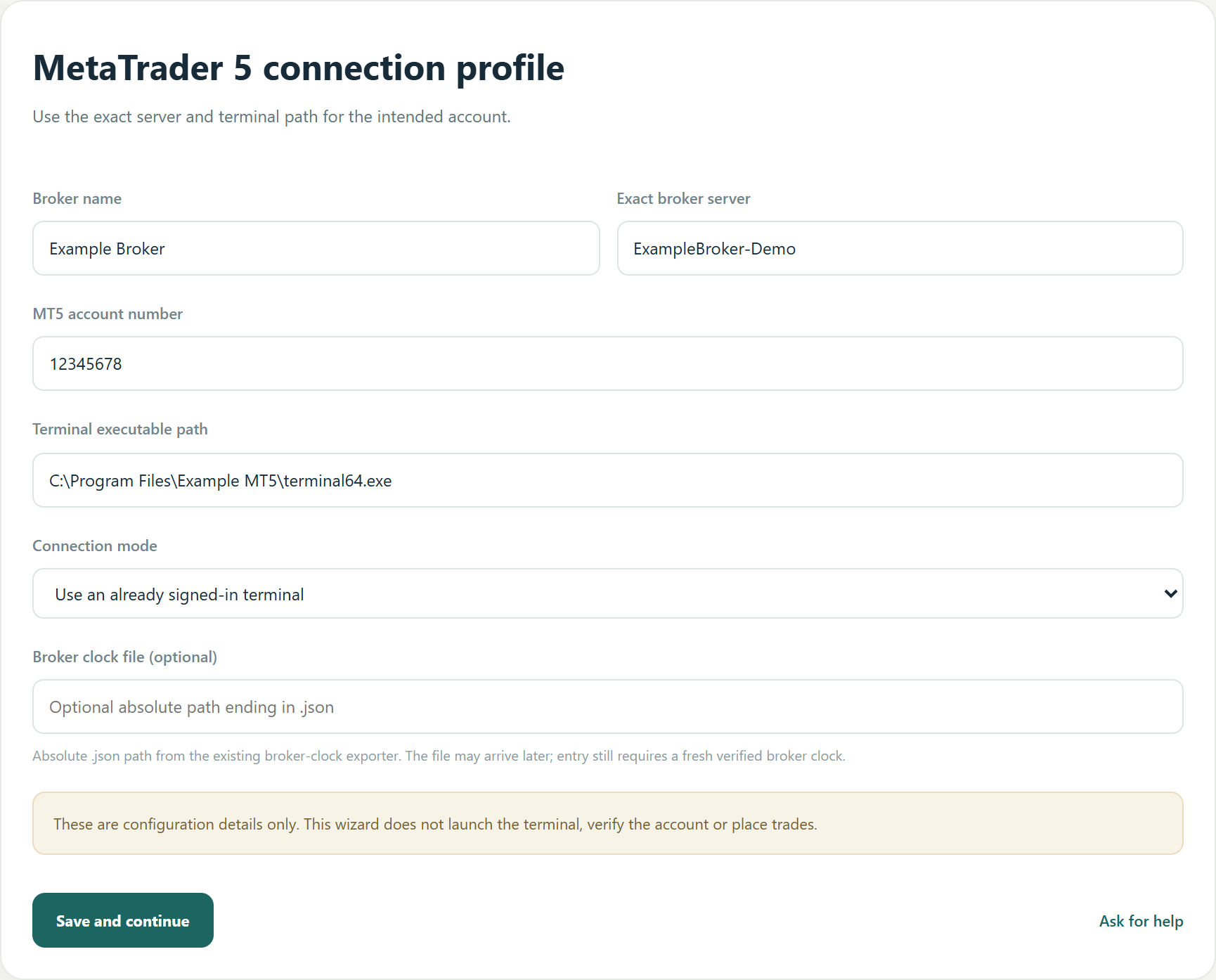
- Enter Broker name, Exact broker server, MT5 account number and Terminal executable path. Copy the exact server and terminal64.exe path from your own installation.
- Choose Use an already signed-in terminal when appropriate. The credentials option shows a local password field; use only the intended account. Saving does not open MT5 or check it.
- Arrange the trusted broker-clock exporter with LSCT. Broker clock file is optional during setup, but new entries require a fresh verified broker clock. Use Save and continue.
6. Choose limits, legs and schedule
Set your own limits. The pictured percentages are examples, not trading recommendations.
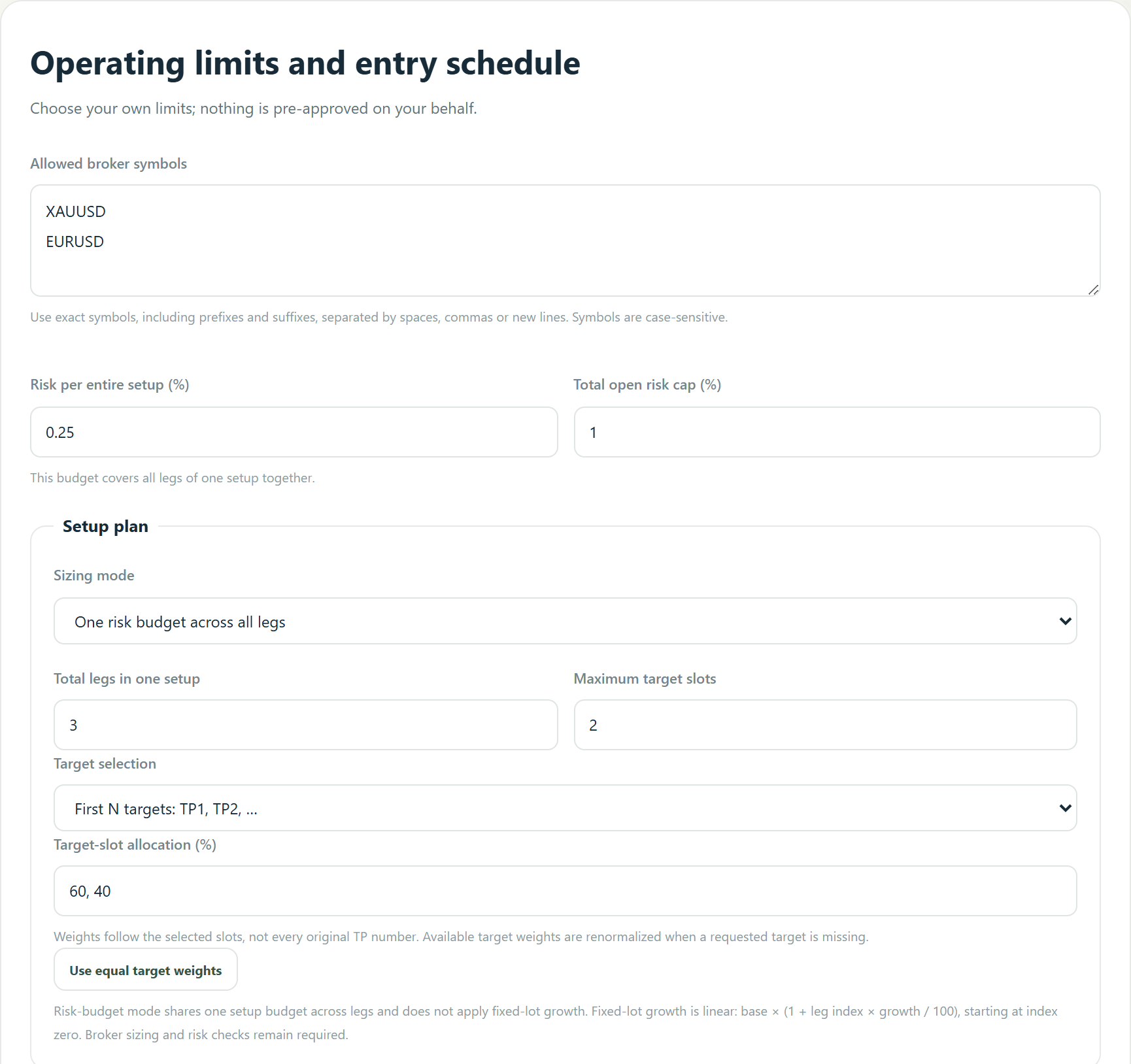
- Use exact Allowed broker symbols, including suffixes. Risk per entire setup covers all legs together; Total open risk cap limits concurrent exposure.
- Select the sizing mode, leg count, maximum targets and target selection. Target-slot allocation must total exactly 100%. First N targets uses TP1, TP2 and so on; explicit selection chooses other target numbers.
- Scroll down to select weekdays and hourly intervals in broker-server time. A selected 23:00-24:00 interval ends at midnight. Review the checkbox and Save and continue.
Later, review Price Distance profiles and protection in Settings. Price Distance 3.00 on gold means a 3.00 quote-price move; 300.00 on BTC means 300.00. Points use the broker point; pips need an explicit per-symbol definition. Schedule limits affect new entries, not protective management.
7. Enroll and verify the license
An installation request, screenshot or payment is not an active software entitlement.
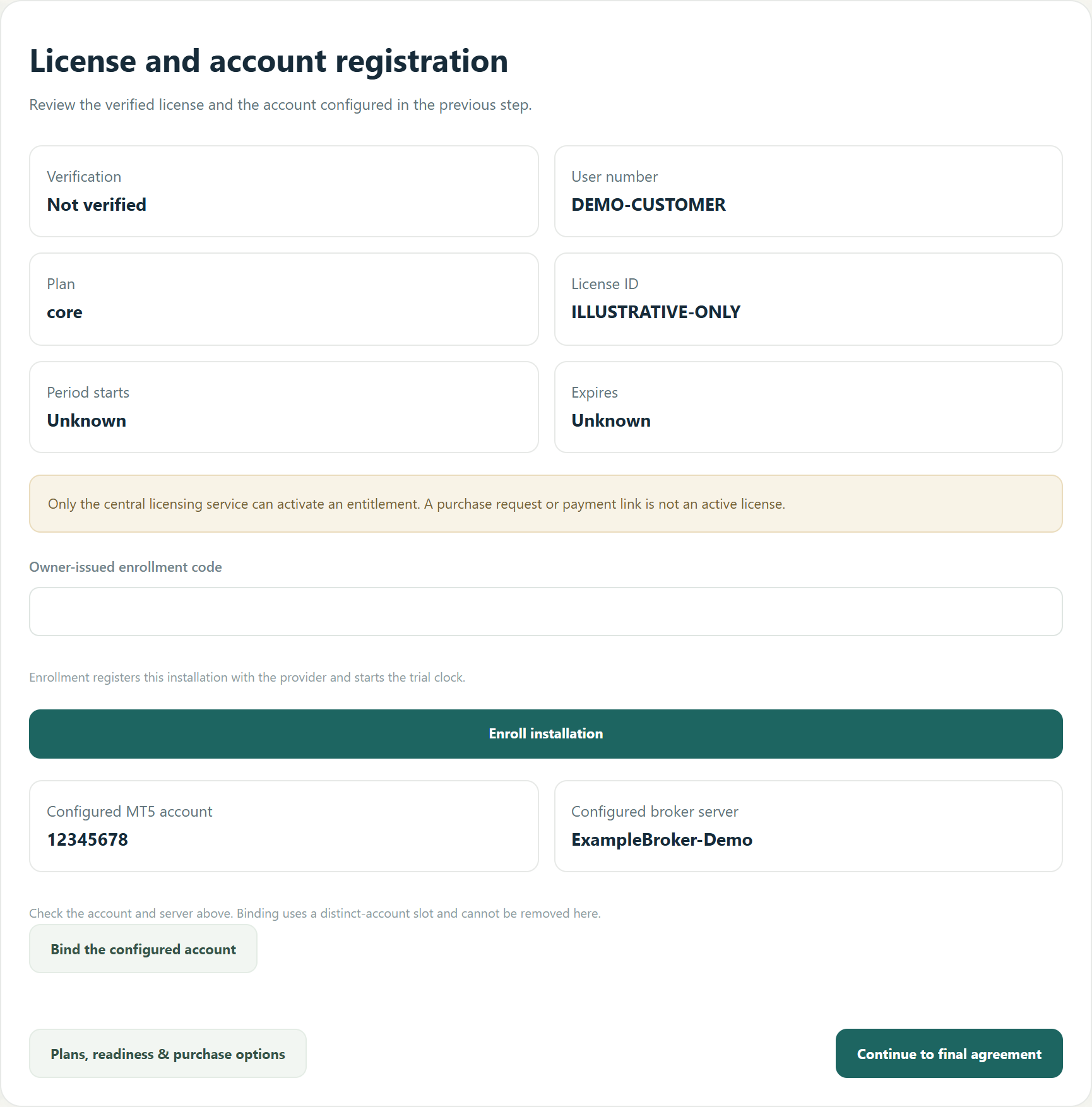
- The normal owner-provided first sign-in registers this installation. If Owner-issued enrollment code is shown, enter the separate code from LSCT and select Enroll installation. Registration starts the trial eligibility window; starting the trial is a separate action.
- Once this installation is registered, enter the subscription code in Code from your provider and select Apply activation or renewal code. Use Start eligible trial only if offered and appropriate. Review verification, plan, license ID and expiry.
- Check the account/server, then Bind the configured account. Current licenses serve one fixed account and one execution session; no automatic DEMO-to-LIVE account switch is provided.
8. Read, acknowledge and finish
Complete the agreement yourself only after reviewing the account, license and operating settings.
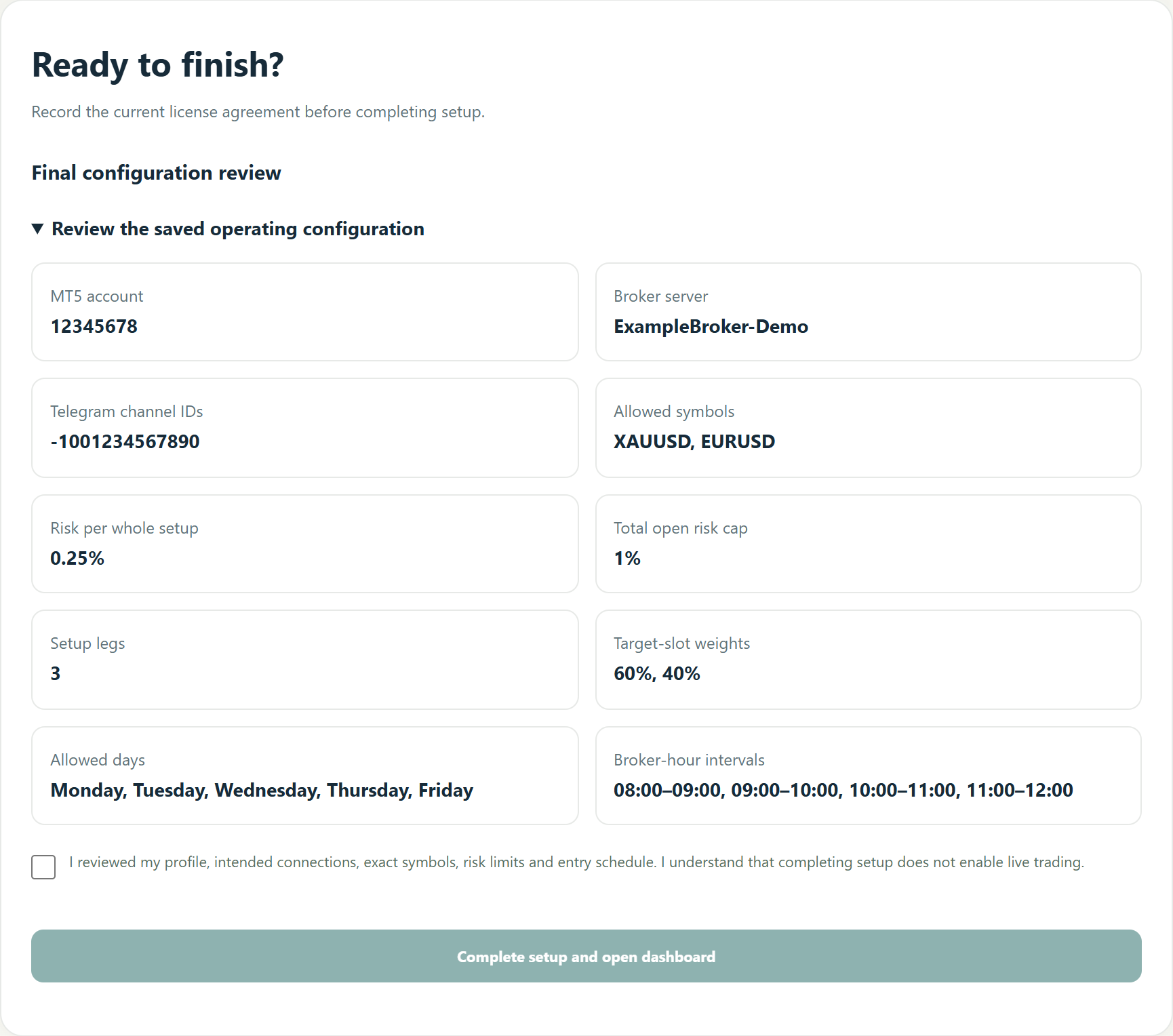
- In Final terms and license consent, read the full displayed terms and guide. Review the receipt details and owner delivery notice, then choose Accept this license agreement if you agree.
- Review the saved operating configuration. After current consent is recorded, check the final review box and choose Complete setup and open dashboard. A disabled button means required checks remain incomplete.
- The consent receipt includes identity/contact details, license, account/server and accepted terms. It excludes passwords, security answers and API secrets. Completing setup does not start trading.
Your first connection and safe restart
Use preview first. Keep installation, connection and Start as separate decisions.
Connect deliberately
- Return to the LSCT Nexus desktop window. Select Signal preview - no orders, then Connect Telegram. Supply your LSCT credentials and any Telegram code or two-step password only in the local prompts. Do not send them to support.
- The host starts Paused. Review Sources, exact symbols, interpreted messages, risk, Price Distance and protection settings. Set only the sources you intend to enable. Preview does not send orders.
- For controlled demo checks, choose Practice trading - DEMO account only. Start is a separate dashboard action. The real-money mode requires exact licensed-account confirmation each session; it is not a demo-account transfer tool.
Pause, stop and recover
- Pause blocks new entries. Emergency Stop latches the stop; it does not close positions. Reset returns to Paused and needs another Start. Disconnect or closing the app stops software management; separately verify broker-held SL/TP.
- After a restart, use the same shortcut and private data folder. Review unresolved operations against the broker before resuming. Do not delete state, reset data or resend an uncertain order to solve a connection problem.
If a step cannot continue
- Service/enrollment problem: obtain the correct company address/code from LSCT. Telegram problem: check your own phone, API values and source access. MT5/clock problem: confirm terminal, account/server and fresh broker time.
- Use Support & FAQ for help. Share the username/license and a brief problem description, not passwords, API Hash, security answers or broker credentials.
Version 3.14 supports explicit DEMO/LIVE mode paths, but actual broker acceptance and independent Windows installer qualification remain outstanding. Arrange controlled verification with LSCT before risking capital. This guide is not proof of live qualification. Trading can result in loss of capital.